Showing posts with label screencasting. Show all posts

Monday, June 5, 2017

Harnessing the Power of Technology in Physical Education


Physical education students at Minnetonka use their iPads in a variety of ways to enhance their learning. At both of our middle schools, physical education teachers use technology in their instruction and take advantage of the students each having an iPad. Here a just a few of they ways how:

One of the many benefits of an iPad in physical education classes is its two cameras and easy to use video editing software. For example, Minnetonka students use these to document their learning and teach others fitness and sports skills. One such project students enjoy is creating instructional videos of themselves teaching skills such as soccer, basketball, or hockey or teaching fitness activities like jump roping, yoga, or pilates. Two example student projects are shown above. This project's requirements are to show the audience the proper way to perform the skills included in the video. Students were tasked to include step by step instructions and drills to ensure the viewer can correctly learn the content. 
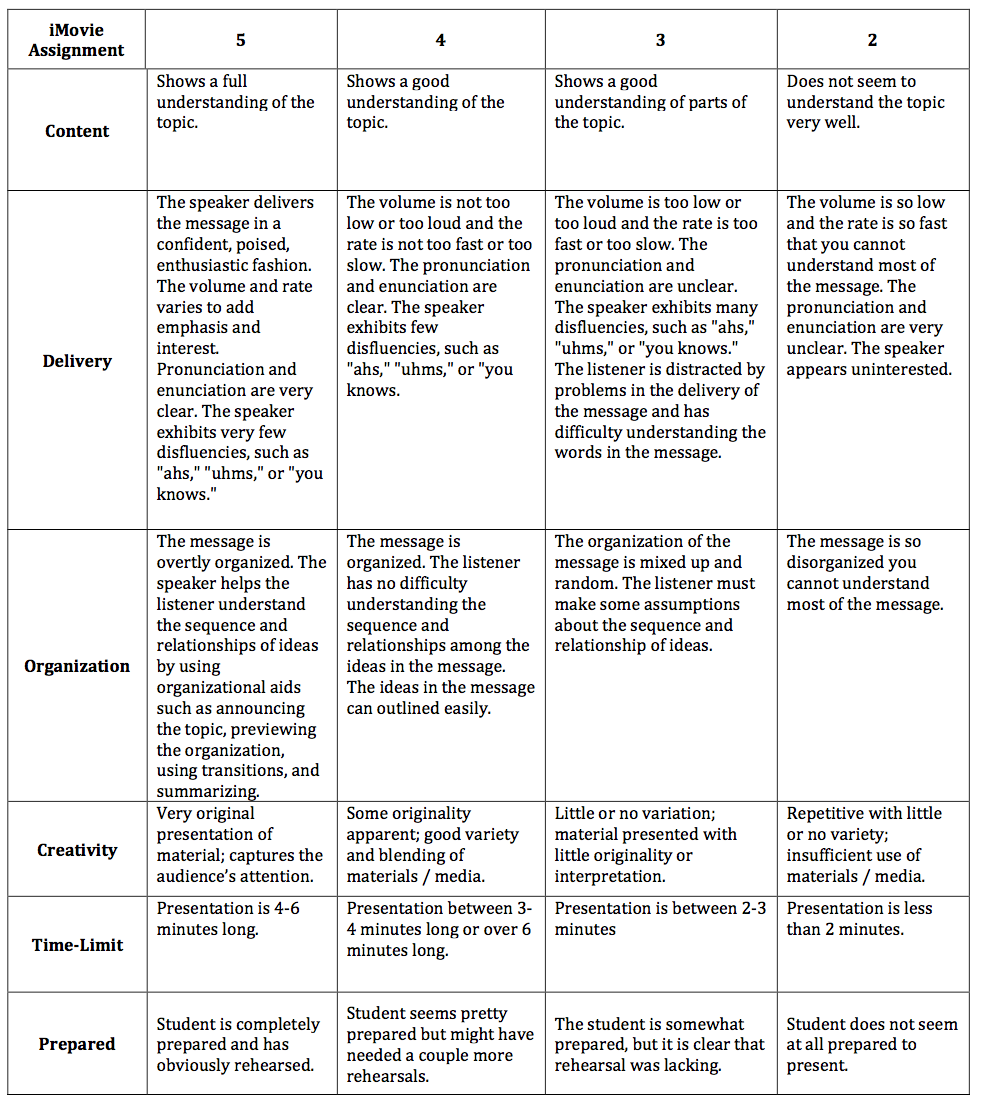
Video Rubric
During this project, students work collaboratively in small groups to plan out, act in and edit the final product. Students then upload their videos to Schoology, our learning management system. The physical education teachers use this project each year as a review activity for the students and as a common assessment for their eighth grade students. They use the rubric pictured to assess the products.

Screen cast for Team Handball
Students use their iPads in physical education in other ways as well. As you can see in this video, physical education teachers have been creating instructional videos for their students using screen casting software for years. These videos are put in Schoology and students watch them before beginning a unit. The teachers have also created assessment quizzes as follow ups to the videos to check for understanding. This flipped classroom model allows for increased time in class for physical activity instead of taking time for direct instruction during class.

Sample Student Activity Log
A third way students use iPads in PE is to keep an activity log in Notability. Students record their sedentary, moderate and rigorous activity, as well as their sleep. They then look at their data and overall averages for a week and complete reflection questions on how they feel about the results. Students work to find ways to be more active, sleep more/less, etc.

Each of these activities demonstrates how technology is used to augment and accelerate learning for physical education students in Minnetonka Schools. Communication, collaboration, creativity, and authentic and real world learning are important skills for today’s students, and the use of technology for learning enhances this learning.

Thanks to Eddie, Keegan, and Robert for permission to share their Basketball Skills Video and to Hunter, Harrison, and Nick to share their Soccer Skills Video.

Related posts:


Monday, March 27, 2017

Authentic Language Learning Through Tech Tutorial Screencasts

Recently at Minnetonka Middle School West, teachers Stephanie Battista and Melissa DuBose had their seventh grade Spanish Immersion students make instructional technology tutorial screencasts. They purposely had the students make these videos to give them an authentic task to practice using specific instructional and technical vocabulary, in this case “mandatos” aka command verbs. This language practice was not something that would have been as meaningful or memorably practiced in a simple classroom discussion.

Student sample template
The students worked in small groups with two to four classmates and chose an app for their project, such as Pic Collage or Popplet. They then collaborated and created their plan and script in a shared Google Doc using a template (pictured) for their instructional screencast which was to last a couple minutes. They made a shared Google Slide show with screenshots and instructions to use in their Explain Everything video. Melissa and Stephanie are hoping that final screencasts will be used with our elementary Spanish immersion students as part of a tutorial library in the future so these younger students can learn how to use these apps as well as learn the language in an authentic situation, hearing older students as the teachers. 

Here is a student example (shown above). The basic summary of the project requirements are below:
  • Must include an introduction to the app: What is it?  Why is it useful? What are the benefits?  
  • Must include at least ten steps explaining how to use the apps. Instructions should be detailed and easy to follow for a new user.  Underline these words in the script!
  • Must include “mandatos” (the command form of Spanish).  Highlight these words in the script!
  • Must include at least five screenshots and an image of the app icon to help users follow along
  • All group members must contribute!  All group members must speak at some point during the tutorial.
  • Final product should be 2-5 minutes long.

When I asked Stephanie to reflect on the project and its outcomes, she said the following: 
I love this project because Google Docs gives students the freedom to collaborate and work together simultaneously on the same document. It does take students a while to get used to sharing and exporting Google Docs, but we have worked hard to get our students accustomed to the app, so much so that some students chose to present Google Docs in their App Tutorial.  The major benefit of this app is that when students are absent or need to work at home, they can easily do so using a Google doc.   
Additionally, using Explain Everything gives me the opportunity to hear my students use their presentational communication, which is an important skill that we are trying to improve.  Many of our students can speak “conversational” Spanish proficiently, but struggle to speak in a presentational manner for an extended period of time.  This project gives the students the opportunity to plan and practice those skills.  We look forward to the future and hope to pass on these videos to our elementary counterparts as an authentic resource!
Furthermore, Melissa adds:
I agree with Stephanie, that this is an opportunity  for a truly authentic experience and will create a great way to share with our elementary schools. I think the students enjoy the project and love picking out which app they would like to make a tutorial for. They struggle to find the vocabulary they need without using English but this a great opportunity for them to apply the vocabulary specific to a context they might not feel comfortable in. 
This is a great example of student collaboration, communication, and learning in an authentic and real world situation harnessing the power of technology in our 1:1 iPad program. It covers multiple dimensions of the Minnetonka Teaching & Learning Framework.

Related Posts:

Monday, September 12, 2016

Technology Shouldn't Be Absent When the Teacher Is: 5 Ways to Ensure Substitutes Are Ready

Just like students, sometimes teachers are absent, whether it is for a meeting, conference, or due to illness. In a teacher's absence, it is critical that the substitute teacher step right in without any problems so the learning continues. Because so much instruction is done with the help of technology, it is also essential that reserve teachers have access to and knowledge about using the necessary technology for uninterrupted learning to happen. Here are five ways to ensure it does:
  1. Training
    For many years we have been providing technology training for our pool of substitute teachers. Each year we offer technology classes that reserve teachers can take to better understand our systems such as SMART Boards, iPads, Schoology, Google Apps for Education, and more. We want reserves to be comfortable enough to jump right in where the regular teacher left off. We offer these classes in August and during the school year.  

  2. Access to Necessary Accounts and Data
    To protect student data and ensure security of our systems, regular classroom teachers do not share their personal login username and passwords with a substitute. Instead, our Technology Department generates logins for reserves. Substitute teachers receive this information from building secretaries when they report to the school office at the start of the day.  These accounts and passwords are frequently changed protect data security.

  3. Access to Needed Hardware
    All of our classrooms have a desktop PC workstation connected to the projector, so the hardware and platform is consistent from room to room and building to building. We don't need to worry about the teacher taking a laptop home with them and there not being technology for the substitute. I was surprised recently to hear a teacher from a different district describing how their teachers use laptops but reserves are left without any computer to use since teachers take them home nightly. If your school uses laptops, be sure to have enough available for every reserve teacher so technology access for instruction can remain consistent and available.

  4. Access to Full and Clear Instructions and Files
    Our teachers leave their sub plans and files in a shared network folder that is accessible to reserve with their login. More and more often, teachers are even recording short videos and screencasts with their instructions prior to their absence, speaking directly to the students so it is clear what the lesson and assignment is. They also post this video to their Schoology classroom website and some even let the students know ahead of time that they will be gone. This eliminates any confusing or reteaching of complex content that could occur when a reserve does not fully understand or explaining things the way the teacher wanted them to do.

  5. Access to Help When Needed
    If the reserve teacher needs help, our Media Center staff is their go to point and first stop for technology questions and issues. We also have offered technology training for our paraprofessionals for years, knowing that this is not only important for them so they can better assist students, but also that a paraprofessional may often help the reserve teacher troubleshoot issues if necessary.
Do you have other tips for successfully preparing your reserve teachers to use technology for instruction? If so, please share them!

Monday, November 30, 2015

Students Explain Everything and Increase Test Scores

Each year fifth graders in Minnetonka Schools study the science of catapults as one of their units. Excelsior Elementary teacher Jennifer Kitt explained to me recently that the assessment for this unit is typically a more difficult test for many of her students. She explained that in the past, students have not had as high of scores on their final test compared to their scores on other science units. So she was eager to try something new.
Image Source: Explain Everything

This year with iPads in our 1:1 Program, all fifth grade students now have access to the app Explain Everything. Jennifer had her students use this tool to document their learning and explain what they had learned about catapults. She said that her goal was to have her class use a higher level of Bloom's taxonomy, and knew that Explain Everything would be a great way to do it. 


When I was in her classroom, students showed me their products. Emma gave me permission to share her product and you can see it in this video. She combined photos, text, and handwriting in her explanation about catapults.


As a result of this project, Jennifer was very pleased that her students recorded the highest scores on this test that she had ever seen in her years of teaching, including students with various academic needs. The students certainly seemed to benefit from the added technology component this year to the catapult unit. Compiling a summary of their learning in a format that could be used to teach others as well as for review of the concepts they learned paid off.


Explain Everything is just one of the many apps our students have available in our 1:1 iPad Program for grades 5-12. It's a great screencasting app, allowing students to include all sorts of media in their presentation and edit the audio, text, and images with precision and ease. I've heard the app's inventor, Reshan Richards, speak a few times and know he is eager to continually improve his product. He has incorporated many suggestions from both students and teachers into this tool. As more and more of our students in Minnetonka Public Schools continue to use it, it will be fun to see what they create!