Showing posts with label Learning Management System. Show all posts

Monday, September 24, 2018

Minnetonka Middle Schools Switch to Schoology Gradebook Increasing Clarity & Understanding of Learning

Parent Tutorial Video created by Instructional Technology Coach Sara Hunt

Parent Grade View
This school year all grade 6, 7 and 8 students’ current grades will be in Schoology. For the past eight years Schoology has been our Learning Management System (LMS), our daily space for learning. Until now we had our grades housed separately in our Student Information System (SIS). Now by using Schoology, all assignment details will be in the same place as the scores, making it a one stop shop for this information. Schoology offers much more detail behind each score than possible in our SIS, letting users actually view assignments, the students' work if done electronically, teachers’ comments and feedback, rubrics, view any missing homework or incomplete assignments, even see some assessment answers and more. Scores are posted in real time and questions about what has been graded or is missing will be greatly reduced.

Mobile App View
The easiest way for parents to stay informed of grades is to sign up for a daily or weekly email digest which pushes information to them without having to login to look for it. Parents can also access Schoology grades through the same mobile app available in both iOS and Android platforms that our students use on their iPads (which saves your login info), or on a computer through the district website (which requires a login each time). We encourage parents to use these tools to stay connected to their child’s learning in Minnetonka.

At the end of each quarter grades will recorded in in our SIS as well for each child’s transcript.  Students at elementary and/or high school will still use our SIS for grades and Schoology for learning information. Next year our high school will use the Schoology grade book, too. This year the instructional technology coaches at our high school are working to help teachers prepare for this transition.

During the second semester last year, students, parents, and teachers at Minnetonka Middle School West tested out the Schoology grade book to compare it to our SIS. Feedback was very positive and parents liked the depth of information they received through Schoology compared to the limits of our SIS. We know that this one location for all of a student's learning content and achievement scores will provide both students and parents with a greater insight and understanding of learning and look forward to the benefits of this increased clarity of information.

Related posts: 

Monday, July 31, 2017

7 Years & 7 Lessons for Success with Schoology

Last week at the Schoology NEXT Conference in Chicago, I co-presented with Steve Urbanski, our Director of Curriculum. Our presentation was on 7 Years & 7 Lessons for Success with Schoology. In Minnetonka, we use Schoology as our learning management system. Schoology supports and extends learning both in and outside of our classrooms for over 10,400 students in K-12 plus hundreds more online. You can view the full presentation farther below or directly with links in the speaker notes here. Our seven lessons for success with Schoology, and for that matter, any learning management system, are:
  1. Minnetonka has set clear expectations for all K-12 teachers to use Schoology. These expectations outline clearly defined guidelines for using Schoology as a hub of learning. They guide deep implementation and ongoing professional development to ensure success.
  2. As with any technology, continual professional development beyond the initial implementation is critical. After teachers become comfortable with the basics of a LMS, they are ready to learn and begin using more advanced tools within the platform. Ongoing support for teachers with Schoology has resulted in deeper, more meaningful use of its features.
     
  3. Schoology's role is critical in important initiatives such as a 1:1 program. Having a central hub for learning that makes management and workflows of paperless classrooms easy increases efficiencies and time for even more learning to occur. I can't imagine a 1:1 program being successful without a LMS. Schoology's iPad app is wonderful.
  4. Schoology supports our differentiated instruction through online classes for students and staff. We use Schoology with over 400 students taking classes in Tonka Online. Staff also can take courses online over the summer for professional development.
  5. We use Schoology for staff collaboration which strengthens and expands our already successful academic program. From department chairs to committees to building staff, a wide number of groups utilize Schoology for communication, networking, and sharing resources.
  6. Our curriculum and resources are designed and shared through Schoology. Our teachers working on curriculum both during the school year and in the summer use Schoology to connect, dialog with one another, build out and share their curriculum and resources.
     
  7. Schoology supports our Framework for Teaching and Learning. Teachers and students have access to content and activities that support all areas of this Framework. A LMS is essential to successfully teaching students these skills.


Monday, June 6, 2016

Minnetonka Technology Tools Protocols: Determining Value Add for New Tool Adoption

There certainly are a lot of educational technology tools out there, and every day it seems even more products are added to an already crowded market. The number of vendor calls and emails I receive per day are a constant reminder of this reality. (If you haven't read Patrick Larkin's spot on message to vendors, you should.) 

In many ways, of course, this is a good problem to have. Having so many tools to choose from and a competitive marketplace means that vendors are regularly adding features and enhancements to their existing products in order to stay in the game and expand their presence, while new companies are releasing innovative products trying to break into the space. Both students and teachers benefit certainly benefit as these tools improve education. 

However, with so many tools to choose from, some protocols are helpful to guide selection of what tools to use and help decide when to adopt new ones. In Minnetonka, we have a set of standard tools that everyone uses, which helps provide focus for training and support as well as not overwhelm our students, parents, and teachers with too many options. For example, we have used one learning management system, Schoology, for years as opposed to allowing anyone to use whatever they want. A lack of standard tools quickly becomes frustrating for a student (and parent) trying to find all the homework for a sick child. In our 1:1 iPad program, we use Notability for our note taking program, and since we limit the availability of apps within the Apple App store (see Balancing Choice and Control with a Half Million Apps), teachers and students can focus on learning rather attempting to keep up with a huge number of apps and track specific and or/individual features and nuances. In some cases when it is beneficial to do so, we do have a few apps to choose from rather than just one, such as more than one screen casting app, one word processing tool, or one formative assessment/student response system.

This balanced versus overwhelm approach doesn't mean we aren't regularly looking at new tools and evaluating whether or not try them out in our environment. When we do add new tools, we often start things in small pilot groups rather than rolling them out district wide. This helps us to make sure things truly work well and better plan our implementation and training, too. 

This spring a group of our instructional technology teacher coaches (Tech TOSAs: Teachers on Special Assignment), Building Principals, and District Admin met and listed our protocols for technology tools in an effort to both provide guidance and clarity for our teachers and staff as to how and why products are selected. We came up with the following. Hopefully you find it helpful. I'd appreciate hearing from other schools to see how you have organized this process:

District Tech Tool Protocols

If you have an app, software program, or web-based tool that you'd like to use, please see the criteria and requirements below.  Then, if your new tool meets these requirements, talk with your Tech TOSA and Media Specialist about adding it as a District supported tool. The following criteria should be applied to all teacher- and student- suggested apps. Teachers are welcome to use new technology tools as long as they meet the criteria below:

  1. Teachers need to use District Materials Selection guidelines (Policy 606) to make a sound decision (requests).
  2. Teachers need to notify tech staff of the tools being used (requested).  A growing number of applications may need to be approved before student data is uploaded or an App distributed through the MTKA store.
All Tools should:
  • Be free (some exceptions if budget allows)
  • Be age-appropriate for audience (14+ for MHS, 11+ for Middle Schools, 4+ for elementary)
  • Be free of advertising
  • Not duplicate a tool/workflow process that we already have
  • Be educational
  • Has the company signed the Student Data Privacy Pledge? (student email address is private data along with achievement scores)
Things to Consider:
  • What are the limitations to the lite version?  Are there additional/in-app purchases for the full version that are essential to the function?
  • Does it have a broad application rather than a narrow focus?
  • Ease of use for students and teachers (Schoology) workflow.
  • How are students accessing/signing in? Does it require individual student logins or can a generic user login be shared by all students?
  • How is student data saved/backup? Will it take up a lot of space?
  • Does the program work on all devices (PCs, iPads)?
  • Who owns the work/copyright?
  • How do parents access/view students’ work? Is this a tool for which parents will need a separate account?
  • Are the benefits/value add for this tool great enough to add to this the mix of tools being used by students, parents, and staff?
  • Will this be used on an ongoing basis for student learning? If so, requires principal or District approval in May annually as supplemental material- Policy 606
Unapproved Tools:
  • duplicate the features and functionality of existing tools (we don’t need another note-taking app, for example)
  • require teachers to set up classes and enroll students
  • be a “lite” version that offers minimal functionality
  • require additional/in-app purchases
  • are too large for use. For example, apps below 125 megabytes work best
  • Age restriction compliance
  • Does not meet District Terms of Service or privacy requirements
Essential Standard Tools
These tools are expected and/or highly recommended to be utilized by all teachers:
  • Schoology
  • Skyward
  • Google
  • Outlook
  • SMART Notebook
Recommended Tools (1:1 classrooms)
These tools are highly recommended for a 1:1 classroom environment. They align with our instructional framework and we have invested and purchased them:
Optional Tools
These provide value, you may choose to use these apps/web tools, if desired. Training and support may be available:
  • Single Sign On tools
  • Google Sites
  • Schoology Portfolios
  • PreciouStatus (Supplemental app, not taking the place of Schoology)
  • iXL (depending on building-level subscriptions)
  • Kahoot, Class Kick, Quizizz, Quizlet, Go Formative
  • Remind (Secondary only)
Unsupported, Unapproved Tools
This doesn’t work for a clearly defined reason… The following are not supported, so please do not use the following tools:
  • Google Classroom (a competing LMS which would require students, staff and parents  to use a second system for coursework)
  • Class Dojo (conflicts with Responsive Classroom)

Monday, May 30, 2016

Six Years with Schoology: Setting Expectations for the Future


We are finishing our sixth year using Schoology as our learning management system, which we use to extend learning both in and outside the classroom. I am so thankful we adopted Schoology. It really has enabled our teachers and students to focus on learning and not worry about the technical issues of maintaining classroom websites, granting sharing permissions with Google files, working in paperless classrooms, and so much more. Their app, which our 6,250 1:1 iPad students and teachers use multiple times per day, has really enhanced our program and streamlined many of these processes; in turn these increased efficiencies in the classroom have created more instructional time. You can see some of this in the video above. Two examples:
  1. When a teacher creates an assignment in Schoology, s/he has the option to have a folder (like a dropbox folder) automatically be created. Students turn their digital files/work into this folder, which can come directly from their Google Drive, iPad camera roll or computer hard drive. Teachers don’t have to make a folder in Google Drive, name it separately, grant permissions, etc. As students turn in their work, it automatically is labeled and alphabetized, and Schoology tracks and shows who turned it in on time/late, etc.
  2. The rubrics available within Schoology make paperless grading super efficient for the teachers using the iOS app, too. Teachers can tap the different criteria in the rubric for the student's score, make annotations in digital ink on the assignment, and even leave audio feedback for the student. As they finish grading each assignment, they can swipe across the screen to the next student. 
Since we started using Schoology, we have set up expectations for use. This spring a group of our instructional technology teacher coaches (Tech TOSAs: Teachers on Special Assignment), Building Principals, and District Admin met and updated our Schoology expectations for teachers for the upcoming 2016-2017 school year. 
There are clearly spelled out expectations and guidelines for having an Online Presence in Schoology and also for going beyond the basics of this presence: to use Schoology as a hub of learning for a Digital Classroom. We first heard of this delineation from Osseo Schools who also use Schoology.

We will offer 90-minute training classes for staff in August to prepare their Schoology courses for the coming school year and ramp up their level of use of many Schoology features. Schoology offers so much more than a simply a place to post due dates and collect homework. Teachers will explore ways to embed content, create Pages, add video/images into quizzes, create student groups to differentiate assignments and/or discussion boards, as well as try out new tools like Schoology Portfolios.

Our expectations for all teachers for a Schoology Online Presence and Schoology Digital Classroom are as follows:

Related posts:

Monday, January 12, 2015

Tip #3 for a Successful 1:1 Implementation: Use Schoology as the Classroom Hub

workflow.png
Image created by Ben Stanerson
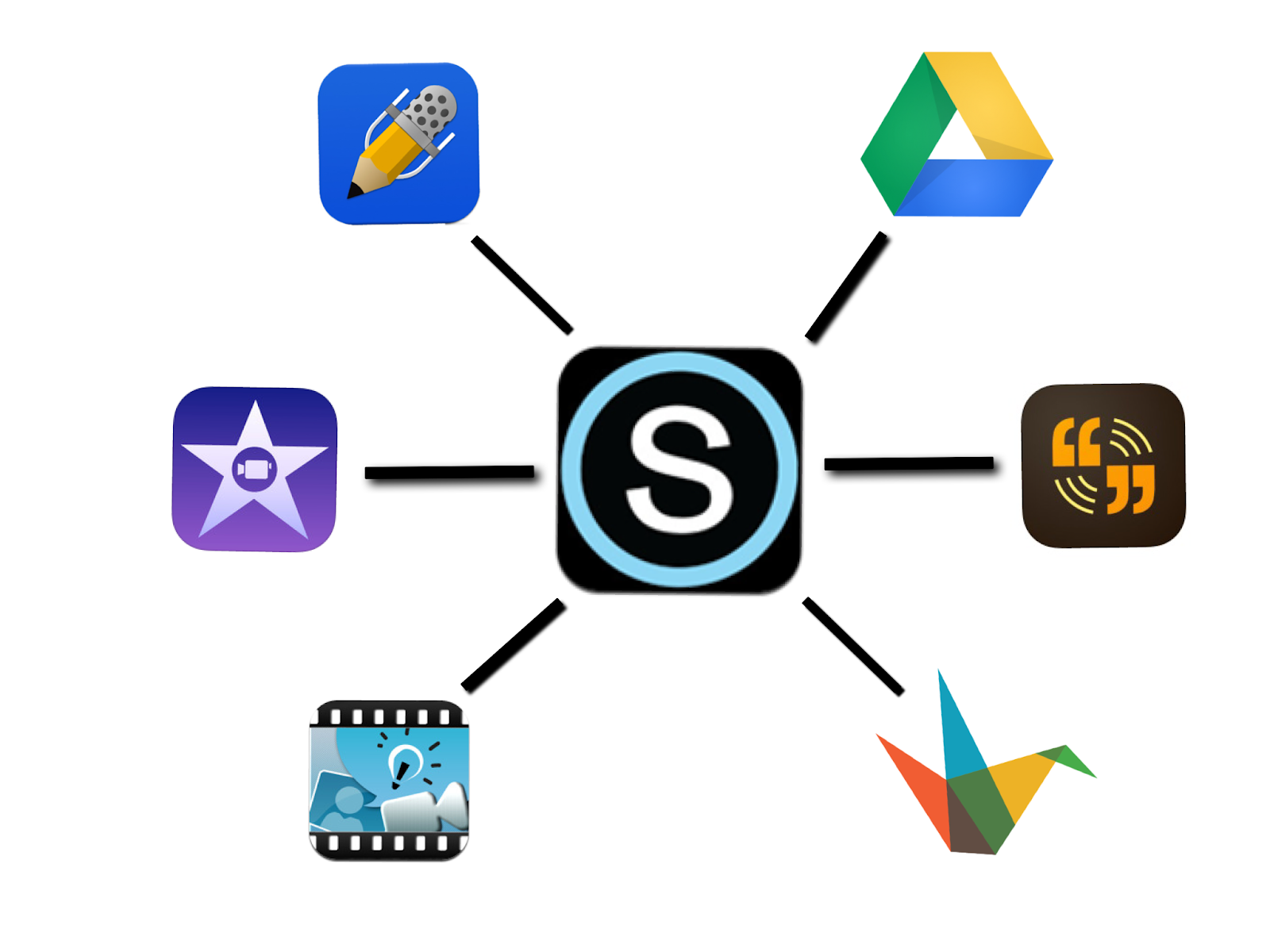
One of the strengths of our 1:1 iPad program has been our decision four years ago to use Schoology as the central hub that allows teachers and students access to digital content. Our choice to use the Schoology learning management system (LMS) has helped enhance the integration of iPads into classrooms by providing teachers with an easy tool to post and collect digital content. Students also have easy access to that content through the Schoology app and Safari. This one common tool allows for communication and collaboration between teacher and student.  Students use Schoology daily to get materials like class notes, worksheets, web links, videos, take online quizzes, and post content to discussion boards. Schoology has become an extension of our physical classrooms.  

Image created by Ben Stanerson
It is super easy to manage a digital paperless iPad classroom through Schoology along with Google Docs, Notability, and other apps like iMovie, etc.  There is no need for a teacher to set up specific Google Folders, deal with sharing permissions, track missing or late work manually, or require students to name files in specific ways.  Schoology tracks and takes care of all of this for teachers, creating more time for them to spend on more important things.  The Schoology app even allows teachers to annotate in digital ink on students' assignments when grading, making a paperless classroom even easier!


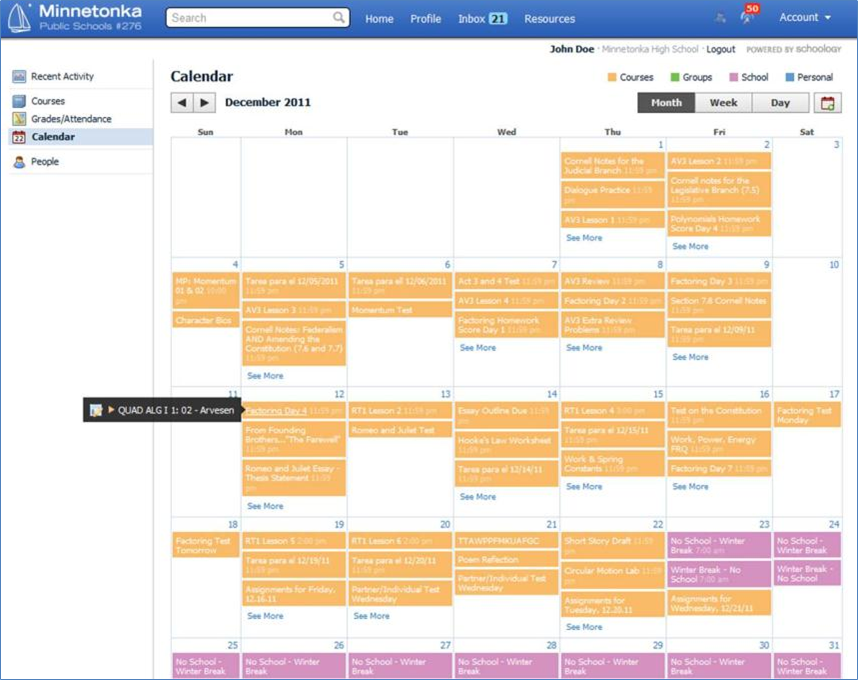
There are many more benefits to using Schoology in a 1:1 program, including the automatic posting of assignments and tests into students' calendars--they don't even have to open Schoology to see what is due.  Alerts and notifications can be set up through email and also text messaging.


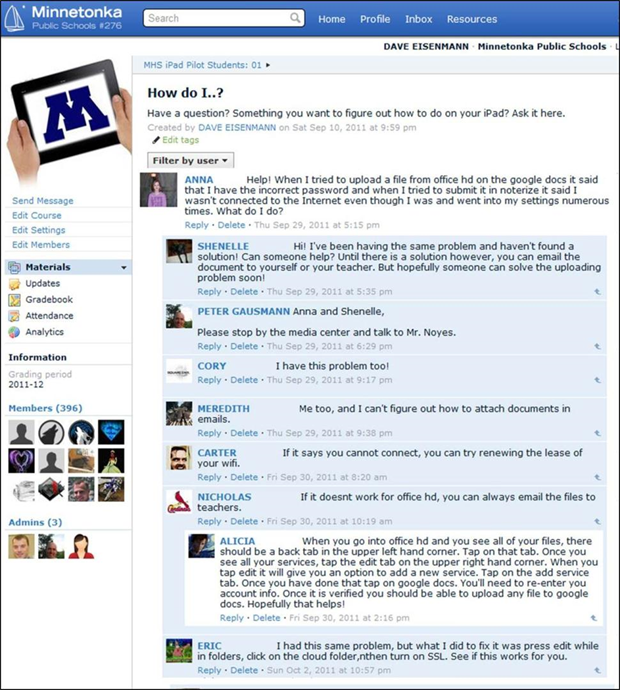
The community collaboration and support that students have for one another in the program is also huge--students also serve as a great resource in assisting others with questions through an online course in our eLearning environment. All students and teachers in the iPad program are enrolled in this course which serves as a central online knowledge base for users. Questions are often asked and answered by students, with little need for staff technical assistance. The online course provides 24/7 support. 


Parents also have access to all of this through one account for all their children. There is no need to learn a separate system and remember passwords for each teacher their child has, etc.