Monday, February 23, 2015

Minnetonka's Technology Belief Statements

Our Instructional Technology Staff, Secondary Principals and Media Specialists, Director of Technology and Assistant Superintendent for Instruction spent a day together last spring reviewing our iPad program and planning for the future. This day turned out to be extremely valuable. If we hadn't scheduled the time to make it happen, I'm sure we wouldn't have been able to carve out the time to get as much done during our monthly meeting of 90 minutes. Having a whole day to focus on our secondary iPad 1:1 implementation with extended time to talk through our next steps allowed us to reflectively take a philosophical look at things.  

One of the results of this time was the drafting of our belief statements below. I am fortunate to work with some excellent writers who did a wonderful job crafting each of these statements. We discussed and fine tuned these and found the process to be extremely beneficial. These have helped us to decide how to focus our energies and efforts in our use of instructional technology. We have continued to revisit these statements throughout this school year. We welcome your ideas and thoughts about these belief statements. I would also encourage you to go through a similar process with your own team:

Minnetonka’s instructional model is built on the Charlotte Danielson framework and includes, among other key instructional strategies, an emphasis on the integration of personal technologies in the classroom.  The following set of beliefs represents the District’s vision for this integration.


  1. We believe...effective use of technology will lead to the development of learners who approach problems more creatively, think more critically, collaborate more skillfully, and communicate with higher levels of precision.


  1. We believe…high-level utilization of personal technologies is the new expectation for our students’ preparedness and success in higher education, careers, and life.


  1. We believe...technology should be integrated in classrooms in the service of learning, not as an end in itself, and that effective utilization in the classroom makes the device virtually invisible.


  1. We believe...effective use of technology leads to higher levels of personalized learning for both students and for teachers, and includes a sense of empathy for all stakeholders as well as human-centered design.


  1. We believe...effective use of technology leads to increased efficiencies of time and resources (paperless classrooms, crowdsourcing, collaborative tools, etc.)


  1. We believe...teaching with personal technologies creates a more student-centered and differentiated learning environment while also dramatically increasing the potential for real-time or just-in-time learning.  


  1. We believe...fluency with current personal technologies is directly related to success with future technological developments.


  1. We believe...it is our moral obligation to transform our current instructional practices to align with our stated belief that our students’ future success will depend on their ability to harness new and emerging technologies.


  1. We believe...effective management of a digital environment requires a proactive approach to digital citizenship as well as regular communication and feedback on the user experience within that environment.


  1. We believe...leaders must model effective use of the personal technologies that teachers are using in the classroom and should be transparent about their leadership journey.


  1. We believe...teacher-leadership in the area of technology integration is an essential element of our collective success and efficacy.

Friday, February 13, 2015

Tonka Teacher Talks at ETT San Diego iPad Summit


Last week five Minnetonka 1:1 iPad secondary teachers shared their best practices, favorite ideas, and tips for iPad integration in their curricular area at the Ed Tech Teacher iPad Summit in San Diego.  Our presentation was entitled Tonka Teacher Talks.  Each teacher presented for ten minutes on how they used technology in their 1:1 iPad classrooms in science, art, math, and social studies. We are fortunate in Minnetonka to have so many great teachers, and these educators shared great things to attendees at our session.  

The five teachers presenting were Kim Hoehne, AP Physics Instructor, Angie Kallman, Middle School Math Teacher, Jennifer Morcomb, 7th Grade Life Science Teacher, Gina Nelson, Middle School Social Studies Teacher, and Emily Swagel, Middle School Visual Arts Teacher.  As you look through the presentation, I think you will agree that they are doing some amazing things with their students.  These teachers' experiences range from a half year of teaching with 1:1 iPads to three and a half years.  Each of these teachers continuously seeks out new ways to create meaningful learning opportunities for their students with technology.  They are creating lessons and activities that harness the power of the iPad and enhance learning for their students.

You can view the slideshow presentation below.  More info about our 1:1 iPad Program can be found here.


Monday, February 9, 2015

Accelerating Learning in Music Classes with Technology

Students in our schools are fortunate to be in a 1:1 iPad environment, where tablets allow technology integration to occur in all subject areas. Handwriting, annotating, scribbling notes in margins, sketching out ideas and drawing pictures are important components to learning, manipulating content, and creation of connections and new ideas. The iPad has provided us with multiple ways to do this.

For example, in our music classes students are using the iPad to enhance and accelerate their learning.  In this video footage recorded last week, middle school band students are annotating their music while their teacher, Paul Rosen, plays a song.  Students were to mark up their music as they heard errors he purposely made while playing.  They can then learn from these markings and annotations to prevent making the same errors when they played the music themselves.


Music students in band, choir, and orchestra regularly mark up their music on their iPad. They also use it in many other ways for their music studies.  Students can accessing recordings teachers have made and posted to Schoology as well as listen to recordings of the entire band/choir/orchestra with which they can play and practice along, making practice time at home more effective.  Students no longer repeatedly practice playing or singing a part incorrectly. 

The iPad is also used for assessments. Teachers have their students record themselves playing or singing a piece and submit this audio/video recording electronically to their instructor with their iPad to Schoology.  The instructor can provide each individual with specific feedback, either written, typed, or audio or video recorded, and post their rubrics in Schoology.

A teacher recently pointed out to me how much additional instructional time this creates for students.  Prior to 1:1 devices, the instructor would take days, sometimes weeks, to pull each student individually for playing/singing tests while the rest of the students had idle time or used the class as a study hour.  Now class time can be spent more productively, increasing the number of instructional days possible in the curriculum.  I have heard world language teachers speak of the same benefits and time gains when they have students record assessments outside of class.

Both music and world language teachers have also mentioned that students will often repeatedly re-record these assessments until they know they have it nearly perfect.  This was something that never was possible with the once and done performance assessments done in class for the teacher.  Repeated practice and self correction improves and increases the learning.  

There are a number of apps that students in our music program use on their iPads.  They can compose and write music with apps like Finale SongBookGarageband, SmartMusic, and Virtuoso Piano. They can tune their instruments at home with insTuner Lite, something my son has done with his viola.  And they can use an app like Pro Metronome to work on their timing and rhythm. 

To learn more about Minnetonka’s 1:1 iPad program, check out tinyurl.com/iPadTonka, which includes more videos of our students and teachers using iPads.

Sunday, February 1, 2015

The Teenage Brain +Dementia of the Preoccupied


I listened to a great podcast last week on NPR's Fresh Air. Terry Gross, the host, interviewed neurologist Dr. Frances Jensen, author of the recently published book The Teenage Brain.  The podcast was entitled, Why Teens Are Impulsive, Addiction-Prone And Should Protect Their Brains.  As both an educator and parent, I found the interview fascinating and enlightening, and would encourage you to listen to it or read the transcript.  Her insight and findings about "learning and multitasking, stress and memory, sleep, addiction, and decision-making" (quote source) are important to understand.


Dr. Jensen explains how the prefrontal cortex of a teens' brain is one of the last areas to develop and become fully connected (myelinated).  This is the area of your brain where decisions are made, where we have our impulse control, and where adults are able to use self control and think twice about risky behavior.  It's no wonder that teens make decisions that can seem senseless to adults. 

She also explains how teens can learn very quickly as connections are being made. This has benefits in education of course, but can also be problematic, especially when drugs or alcohol are involved.  These substances can be especially addictive in teens during the important formative time in their development.  Stress can also be problematic to a teen's brain development, altering how connections are made.  This can lead to increased issues with depression in adulthood.


Dementia of the Preoccupied


Toward the end of the interview, no longer talking about the teenage brain, the host asks Dr. Jensen about her own brain.  Specifically, what she has noticed happening lately, and I was especially intrigued by a term she coined, "Dementia of the Preoccupied."  
"But in a way to explain my own shortcomings in my life with so many things coming at me in one direction - having to switch modes from clinical to basic research to patients to administration, like, you know, on an hourly basis, just so much is coming at me. And you do - things fall through the cracks... So I just have now decided to call it the dementia of the preoccupied because I refuse to think that I'm actually becoming demented - that I just know it's all environmental... I think we're not dwelling on tasks long enough to consolidate our memories, frankly."
She goes on to explain that research is being done to find the "optimal age for this sort of distracted learning" and it is your mid-to-late-30s. After that it plateaus.  I know I was going somewhere with this, but I'm 42 and can't recall what exactly it was...

She ends the interview mentioning that today's medical students can't possibly memorize everything, and so medical schools are beginning to teach their students "how to access information" and the skills of "scanning" and "validating information sources and knowing where to go when." Fortunately these skills are the some of the same ones we are talking about in education: information and media literacy.  Again, I'm sure there was more I meant to write but, well, you know...

Monday, January 26, 2015

Quick & Easy Cell Phone Web Filtering for Kids (*and limitations)

Please note, as of February 28, 2019, Curbi is no longer available and some of the suggestions below are outdated.

Please see Apple Screen Time a Huge Win for Everyone, Including Parents! for a great solution to use instead.
 

As parents, we certainly can’t be with our children constantly to monitor all the inappropriate material they may encounter when using a smart phone. We we can help them learn to make good choices and discuss what to do when they do come across inappropriate content.  We can also use technology tools to help limit the amount of exposure to inappropriate content which I highlight below:

   
Option A
One of the quickest, easiest ways to put a filter on a cell phone is to use Restrictions (more details and instructions).  On Apple and some Droid devices, Restrictions allow you to create a separate password from your child's screen lock and limit web content (on iPod/iPad/iPhone), app installs, purchases, ratings for movies/apps/explicit language, and much more.  I am more familiar with Apple than Droids, but from what I've read it looks like Droid Parental Controls/Restrictions unfortunately won't filter web content, so see option B farther below.

The default setting for websites that are restricted through Apple iOS is pretty strict, but seems to offer the best option at this time.  You can add a few sites to a whitelist, but your child may need to go to a desktop computer with a more robust filter or need you to enter in your Restrictions password to temporarily access some sites.  I think this inconvenience is a small price to pay for the benefits of having this safeguard in place.


[Added April 2015]
Option A2
Curbi is a great option for parents to filter and monitor their child's Droid or iPhone/iPad and provides valuable data to spark conversations around the use of technology. Read more here in a later post.


Option B
There are also services you can purchase that will help you filter your child’s phone such as SafeEyesMobiCip and NetNanny, but it is important to realize that these products only filter the internet when accessed through that app.  These products have you turn off the cellphone's web browser, such as Safari on an iPhone and Chrome on a Droid, and then they have you also turn off the ability for your child to install and remove apps without your password. This is their solution to preventing your child from not using the filtered web browser/app.  (For example, see NetNanny's FAQ Disclaimer #9: Can Net Nanny filter inappropriate content within "other" apps?) However, if your child accesses a webpage link through any other app with its own built in web browser such as Schoology, Instagram or Facebook, it bypasses the filtered web browsing app. This is a major limitation, which is why I feel that cellular providers need to offer a solution to filter all internet traffic to and from the device, which leads us to Option C.  But don't get optimistic about this third option:

Option C
Some cell phone providers may offer content filtering services parents can choose to activate. My family's carrier, Verizon Wireless, used to do this for 3G services, but hasn't for 4G LTE now for years.  So there is no option for parents to choose this for a smartphone, despite the misleading promise that Verizon lists on their website stating that these services are available to parents.  

From looking around, it seems that AT&T, Sprint, and TMobile also don't offer these services for smartphones, either.  If you know otherwise, please let me know.  To learn more, you can Google your service provider and add the words "parental controls", but be sure to read the fine print to see if you can filter websites your child can access through her/his smartphone.  I had started a petition to get cellular companies to offer these services for 4G LTE but that closed. 
  
Option D
Some phone companies like Kajeet specifically offer filtered phones for children with a variety of additional control options.  Kajeet does offer filtering for Sprint devices, but that won't cover WiFi, so that brings you back to Option A and A2. They also offer unlocked and contract free phones, which unfortunately are a no go for most parents who want everything on one bill under their Family Plan, etc.  

Other filters to consider:
Turn on the free tools within Google and YouTube to activate stricter filters on web, image, and video searches by logging into these apps and websites with a Gmail account and locking them in SafeSearch mode. 

Monday, January 19, 2015

Great 1:1 Program Evaluation Questions for Student, Parent, and Teacher Surveys


It's that time of the school year when educators are looking to evaluate their 1:1 programs.  I've had three requests in the just past two weeks to share the surveys we've developed and used.  I figured sharing these here could be valuable for others, too.  Feedback has always been and will continue to be an important part of our project as we study the impact of this initiative.   We continue to work intensively with our teachers as they learn to integrate iPads into the curriculum, and this input helps to shape our training. 

I just launched our annual iPad Program and Technology survey last week for the fourth year, seeking input and feedback from our 4,500 iPad students in grades 7-12, their families, and their teachers in preparation for late February and March reports to the School Board.  

Over the years, we have found that iPads increase student engagement, collaboration, communication, organization and efficiency, better individualize instruction, provide real-time feedback, and increase 21st century skills like problem solving and critical thinking. You can look through past School Board presentations on this master list of our iPad program resources at tinyurl.com/iPadTonka.  The links to past Board presentations include PowerPoints with graphs of the results to the past three years of our survey questions. The results of this year's survey will be posted in March 2015.  

Below are links to copies of the surveys we used last year.  Initially we asked more questions four years ago and we have cut out some over years.  Since the first semester of our first year of the program had half the students/parents/teachers without iPads, we asked both groups the same questions multiple times in year one and made some notes of the differences between them.  You can see these differences in Board Reports from our first year of one to one iPads.  Now instead of surveying the groups two or three times during the school year, I now just do it once.  (We’ve noticed some survey fatigue…)
If you'd be willing to share your survey questions for program evaluation, I'd appreciate it!

Monday, January 12, 2015

Tip #3 for a Successful 1:1 Implementation: Use Schoology as the Classroom Hub

workflow.png
Image created by Ben Stanerson
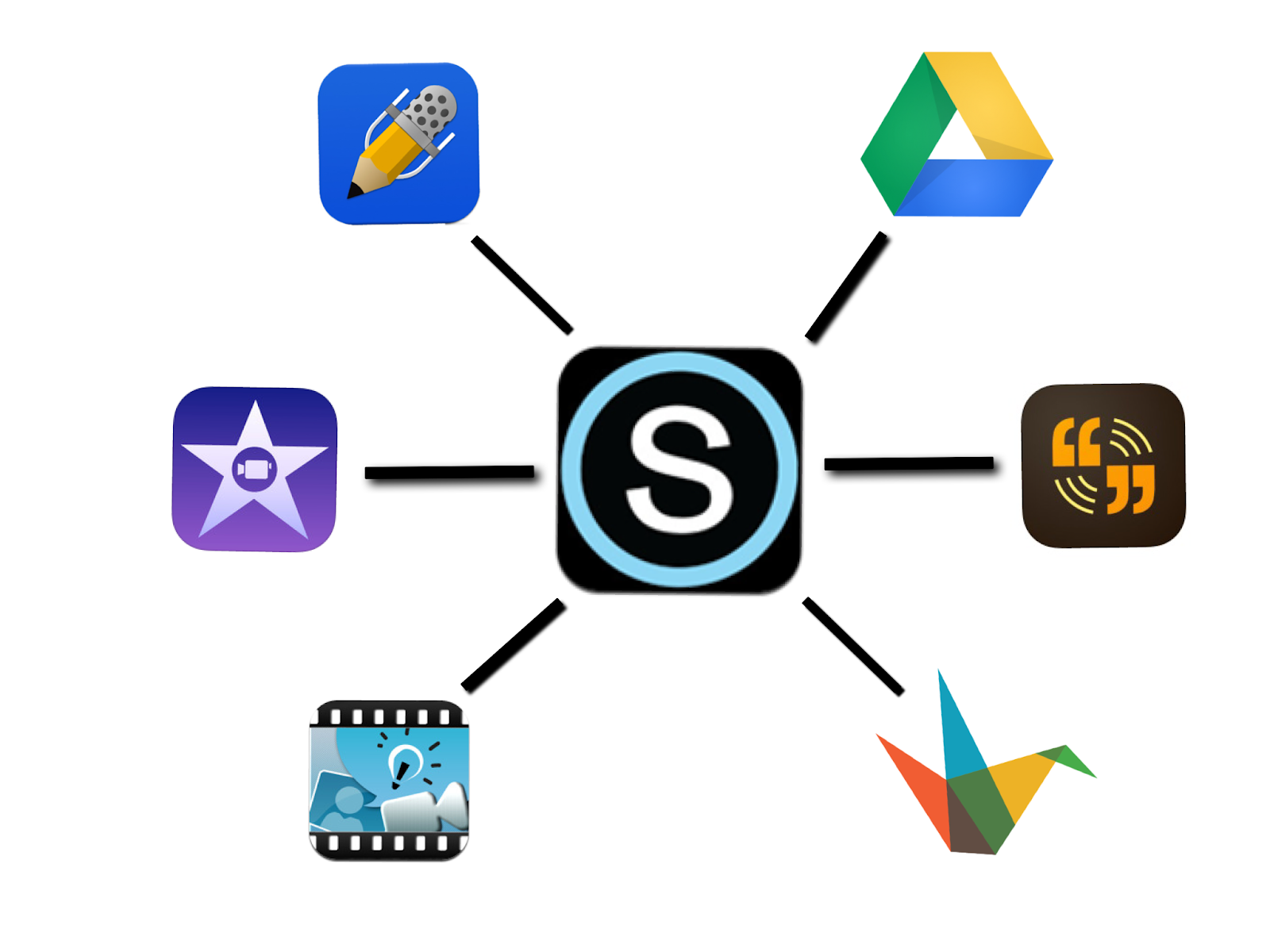
One of the strengths of our 1:1 iPad program has been our decision four years ago to use Schoology as the central hub that allows teachers and students access to digital content. Our choice to use the Schoology learning management system (LMS) has helped enhance the integration of iPads into classrooms by providing teachers with an easy tool to post and collect digital content. Students also have easy access to that content through the Schoology app and Safari. This one common tool allows for communication and collaboration between teacher and student.  Students use Schoology daily to get materials like class notes, worksheets, web links, videos, take online quizzes, and post content to discussion boards. Schoology has become an extension of our physical classrooms.  

Image created by Ben Stanerson
It is super easy to manage a digital paperless iPad classroom through Schoology along with Google Docs, Notability, and other apps like iMovie, etc.  There is no need for a teacher to set up specific Google Folders, deal with sharing permissions, track missing or late work manually, or require students to name files in specific ways.  Schoology tracks and takes care of all of this for teachers, creating more time for them to spend on more important things.  The Schoology app even allows teachers to annotate in digital ink on students' assignments when grading, making a paperless classroom even easier!


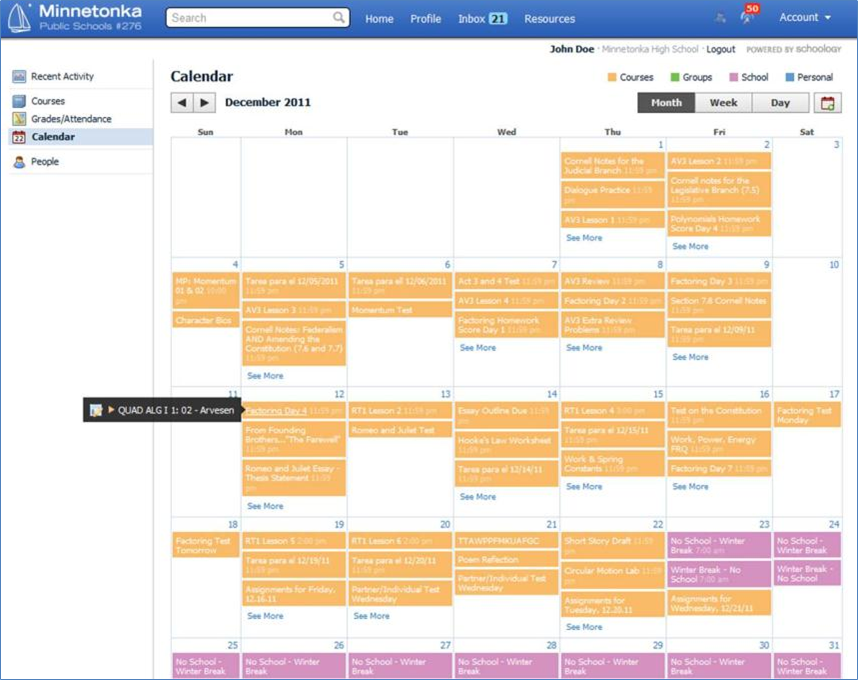
There are many more benefits to using Schoology in a 1:1 program, including the automatic posting of assignments and tests into students' calendars--they don't even have to open Schoology to see what is due.  Alerts and notifications can be set up through email and also text messaging.


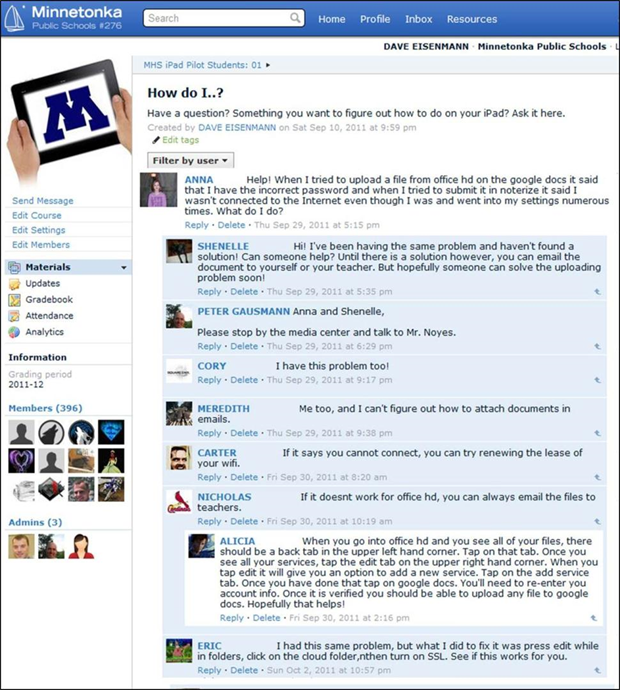
The community collaboration and support that students have for one another in the program is also huge--students also serve as a great resource in assisting others with questions through an online course in our eLearning environment. All students and teachers in the iPad program are enrolled in this course which serves as a central online knowledge base for users. Questions are often asked and answered by students, with little need for staff technical assistance. The online course provides 24/7 support. 


Parents also have access to all of this through one account for all their children. There is no need to learn a separate system and remember passwords for each teacher their child has, etc.