Showing posts sorted by relevance for query do ink. Sort by date Show all posts

Monday, January 18, 2016

Minnetonka Students Create Green Screen Videos with Do Ink

Image Source: Do Ink 

Green Screen by Do Ink
Starting this month, students in Minnetonka Public Schools are beginning to use the Green Screen app by Do Ink on their iPads in our 1:1 iPad program. Do Ink is an application that allows students to easily record, edit, and produce green screen video. Green screening itself is the technique of filming in front of a green background and then using a program with a chroma key filter to replace anything green in the image with another photo or video. Think of a weather forecaster on television standing in front of a map. Do Ink's Green Screen app is a wonderful program that makes this process easy. 

We have looked at a number of green screen apps over the years and tried to find something that was free, but not had success. We really wanted to give our student the opportunity to create projects with a green screen, so we decided to move forward and purchase Do Ink. As a general rule, we try to find apps that are free to keep program costs low. You can read more about our app selection process here.

Minnetonka West Middle School teachers using the
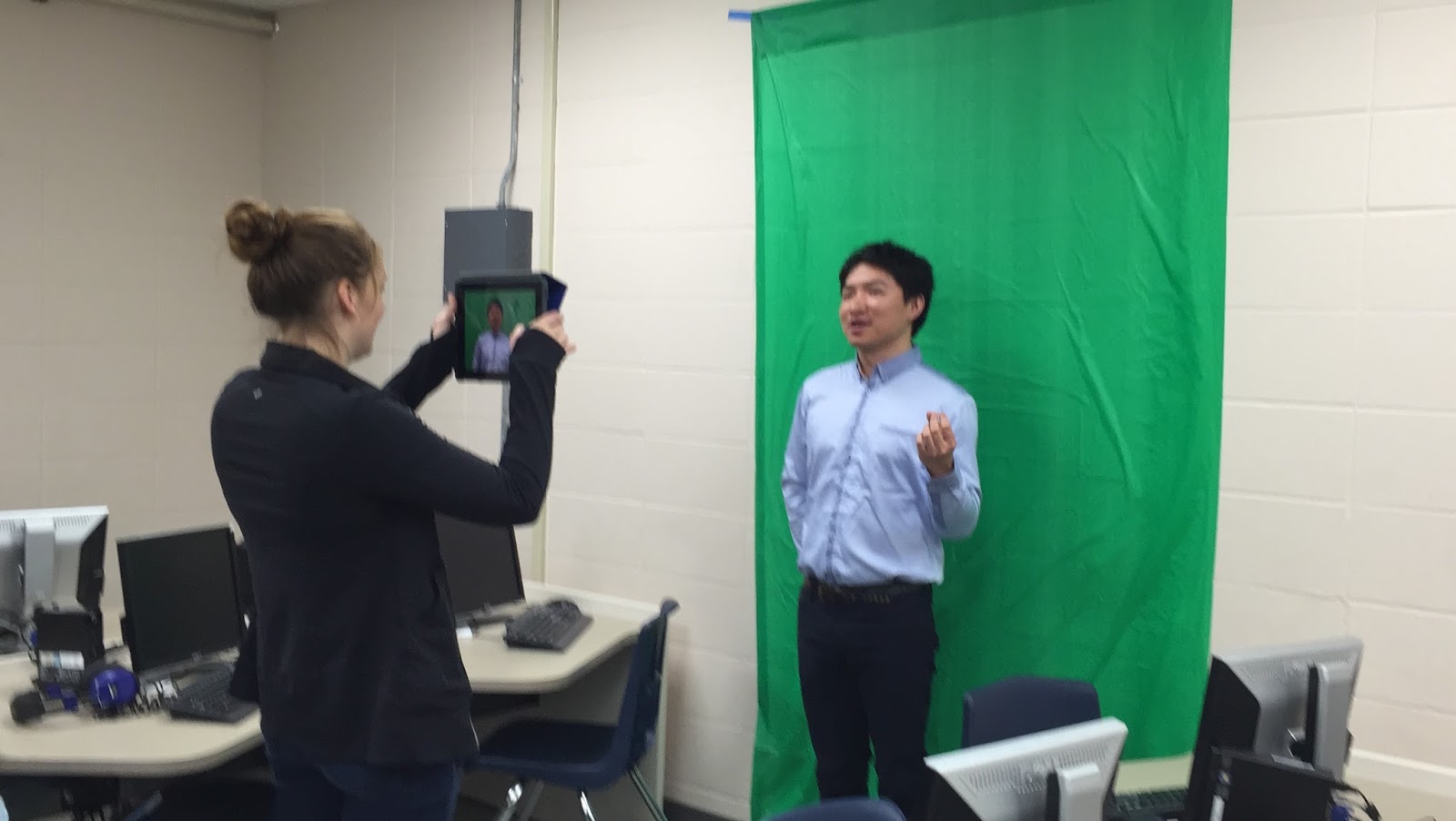
Do Ink app last week. Photo source: Sara Hunt
Last week our middle school instructional technology coaches Sara Hunt and Carson Hoeft began showing our teachers this app for the first time. Sara purchased some inexpensive green tablecloths which they simply taped on the wall for a background. Teachers tried it out and loved it. They are excited to have their students begin using it. Students can make a news show, narrate over a historical video or photo, do a book talk, and so much more. During one of the training sessions, a teacher said he could have his students take a screen shot of a difficult math problem they solved and then use Do Ink to record an explanation of how they solved it. Teachers talked about having shy students use it to give a presentation that the class can watch. There are so many possibilities with this tool, it will be fun to see what our students create! 

Monday, January 16, 2017

One Year Later, Green Screens Are Everywhere in Minnetonka Schools


High School Students filming with green screens.
One year ago this month, we added the Green Screen app by Do Ink to our students' iPads. Since then, we have seen tremendous use of the tool. As you walk around each of our schools, you will see green fabric, green paper, and green plastic table cloths hanging on walls in hallways, classrooms, and media centers. Students are making green screen videos for all sorts of creative projects across grade levels and subject areas in our 1:1 iPad program for grades 5-12.

(Do Ink is an application that allows students to easily record, edit, and produce green screen video. Green screening itself is the technique of filming in front of a green background and then using a program with a chroma key filter to replace anything green in the image with another photo or video. Think of a weather forecaster on television standing in front of a map. Do Ink's Green Screen app is a wonderful program that makes this process easy.)

Student storyboard
In the video above, you can see grade five students in Mike Borgendale's classroom at Deephaven Elementary using green screens as a culminating project in a English language arts lesson. The students wrote  a speech about one of their favorite vacations.  They used Notablity to complete a storyboard template (pictured to the right) that the teacher provided to outline and script their speech. Then they selected images from their personal trip or ones they found online. After recording and editing their speeches in Do Ink, they shared their final projects with the class using Reflector to mirror their iPads and watched everyone's speeches together.


Students using a green screen for an ESPN set.
At the upper grades, students are using green screens for a variety of projects, too. Students in world language classes are using green screens to make videos practicing their speaking skills in all sorts of situations. High school Spanish teacher Sarah Strauss recently had students making videos of TV shows such as Iron Chef, Dr. Phil, ESPN Sports Center, and more. She explained to me that the students work together to plan and write out their script, then hang green fabric on the walls around their classroom or in the halls to film their video footage on their iPads, edit their video, and turn it in to their online Schoology course. She said students are very motivated to create these scenes and write and speak the dialog completely in Spanish, and it's great practice for them.


Students using a green screen for a Dr. Phil set.
Within our Minnetonka Teaching & Learning Framework, these projects are great examples of using technology for learning, creativity, communication, authentic and real world learning, and collaboration. The iPad itself is a great tool in all subject areas, and its mobility, dual cameras, powerful video recording and editing abilities make projects like these so easy to produce that the time and focus is spent on the learning with very thought at all to the technology involved. 

Related posts:

Monday, October 29, 2018

How an Apple Pencil Enhances Teaching & Learning

This past summer we refreshed all of our student devices in our one to one iPad program for grades 5 -12 and all teacher iPads K-12 with the iPad 6 which supports the Apple Pencil. We also purchased some Apple Pencils for about half our teachers in order to learn the benefits of this new tool. Using pencils in school, of course, is nothing new but the Apple Pencil exponentially increases the capabilities of a traditional pencil. An Apple Pencil is more than just a stylus. In addition to being able to annotate using digital ink, opening applications, moving objects, and interacting with menus and more using the tip of the Apple Pencil, the device itself connects to the iPad using bluetooth and is pressure sensitive. This means that when used with an application built specifically to  utilize the features of the Apple Pencil, the user can simply increase the width of a line of digital ink by pressing harder with the tip of the Pencil on the same way that you would with a paintbrush. Applications also recognize when the Pencil is in use and can be set up to only accept input from the tip, meaning a user now has the ability to rest her/his hand on the iPad itself while writing or drawing.

At first, this last feature might not seem like a big deal. However, one high school math teacher who described the Apple Pencil as the biggest change to her teaching in years explained it this way: with it she can now write super legibly while resting her wrist on the screen as she walks around the room teaching from her iPad, wirelessly mirroring her screen on to the projector display at the front of the classroom. Being be out in the class with her students allows her to look at their work and interact with them. She can precisely graph lines and write exponents in equations with fine details and precision not previously possible without the Apple Pencil. She uses the same app that students use--Notability--to work through problems together as she’s teaching and walking around the room. Prior to having the Apple Pencil, she had attempted to use her finger or another stylus but these did not allow her to rest their wrist on the iPad. This resulted in messy handwriting and she just stayed in one place in order to write on her iPad or stayed at the front of the room using the SMARTBoard instead. 

Last week we surveyed the teachers who received Apple Pencils and asked them to provide feedback about their experience so far. Here are some of the comments and feedback collected when asked about the benefits of the Pencil and if/how it had changed their teaching:
  • Everything! I use it for notes in class, for creating video lessons for students, for creating answer keys, for demonstrating to students how to do certain problems. I use it primarily within Notability (also with Reflector) and Explain Everything.
  • I am much more excited about utilizing the iPad. Writing is easier and neater with the Apple Pencil. Students have commented that they appreciate when I teach using the Apple Pencil and Reflector rather than the SmartBoard. I am able to be more mobile during class.
  • I am able to teach from my iPad, allowing me to walk around while teaching. I do not stand in front of the room, but am constantly walking around. The apple pencil allows me to write legibly while writing, especially since we are solving math problems every day.
  • It has significantly minimized the time using the SMARTBoard. I start the lessons with SMARTBoard, but when I do examples, or extended writing, I mirror the iPad. This allows me to freely walk around the room and establish a greater presence.
  • I also use it to create examples of Art and how the iPad can allow the user to improve on current artistic capabilities.
  • The Apple Pencil basically encourages me to use the iPad more and Smart Notebook software less. I use the following apps: Paper53, Notability, ExplainEverything.
  • Notability and Brushes Redux. I use it to manage behavior and meander around the room while I’m working so students feel more connected. I am able to be more involved and do the work along with them, which is very beneficial for keeping pace as I work with special education program students.
  • I have been able to immerse myself in learning more and improve my teaching style. I use the SMARTBoard a lot for writing and math problems but I have small group classes. This allows me to sit among students and work alongside them which improves their engagement. I am able to monitor their learning while I teach rather than needing to stop and meander the room. I also have students who struggle with writing and this has been a big motivator for them (borrowing it).
  • I am able to use Notability and Reflector way more effectively, my writing is clear. I use this for direct instruction. I can write notes/feedback on student iPads more clearly during work time as well. Grading with the Schoology app is much easier as well.
  • Grading!! It is so much more efficient to write feedback for students on their Schoology submissions. I also am better able to model work for students.
As you can see, teachers are finding multiple benefits of the Pencil. When asked how frequently they are using a pencil, 52% of teachers stated that they use it every day and another 19% percent stated they use it hourly.

We have also seen a few students purchase their own Apple Pencils to use with their iPad, too--right now about one or two students per class. This number will likely increase in the months to come. The Apple Pencil design could be improved: not having it be completely round so that it wouldn’t roll off of desks and tables, making the cap attach somehow to the Pencil itself, and making the pencil sturdier to prevent getting cracked or broken when stepped on (although I have yet to hear of this happening). We have also tested out the Logitech Crayon, which cost about $30 less, but unfortunately is not pressure sensitive, so the cost savings doesn't seem worth it. We'll continue to monitor the benefits of this tool and look forward to improvements to the product in the future that likely will yield even more benefits for teaching and learning.

Related Posts:

Monday, November 14, 2016

Math: An Overlooked Subject in Non-Tablet 1:1 Programs

Education is changing and the way students learn math will never be the same. Technology in the classroom like the iPad allows students to organize and share their work faster than ever before. In Mr. Best’s Calculus class, these tools accelerate an already accelerated class. Students use Notability, Explain Everything and Desmos to explore topics in a deeper, more meaningful way.
Unfortunately math is often an overlooked subject area in most traditional non-tablet 1:1 programs. Yet starting in kindergarten, every student through their senior year of high school spends a good portion of their day in math class. Students can't do much of their work in math classes with technology when they are limited to a traditional keyboard and screen.
In most traditional 1:1 Chromebook or laptop programs I've seen, students have their devices closed during math class and use paper and pencil, because math requires handwriting. (For that matter, a lot of school subjects require handwriting.) Sure, you could type up all numbers and variables in the lines of your equations, change fonts to superscript for each exponent, figure out the special keystrokes for math symbols to insert, and come up with other workarounds,  but have you ever seen anyone take the time to do that?! It would be so cumbersome. And if you think writing in digital ink on a laptop is comparable, you likely haven’t tried for an extended period of time. Occasionally while touring traditional 1:1 programs with keyboards, I’ve seen math students who are using their device as an expensive calculator or have opened up an online textbook. Some teachers in these situations do try to harness the limited technology available for math by incorporating video instruction, YouTube tutorials, Kahn Academy content, and assessment tools.  
Because of the limitations of the device, students in traditional 1:1 programs are limited to consuming content in math rather than interacting and creating it. There is so much power in handwritten notes, sketches, and annotations. The availability and power of digital ink sets 1:1 tablet implementations on a level above that of traditional devices. Since so much of school is handwriting, the ability to use digital ink for note taking and math homework allows students to harness the power of technology for all aspects of their learning. Not only can they access content for learning, they can create it.

In Minnetonka math classrooms, students using Notability write in digital ink, which allows them to write, resize, relocate, change colors, copy, paste, manipulate, pinch, zoom, drag, interact and more with their own handwritten equations and notes. Research has shown that typed up notes aren’t as memorable or helpful and can even be detrimental to learning. The ability to create handwritten notes and so much more on a tablet should be a key factor for consideration not only in math but all subject areas. Math class can be paperless with 1:1 tablets. Tablets allow students to not only create handwritten notes with technology, but redefine what traditional note taking even is compared with paper and pencil in a traditional classroom or traditional keyboard 1:1 environment.
In addition to digital note taking and annotations, students frequently use the camera for both photos and videos which are added to their notes. They quickly snap a picture of the teacher’s example, embed it right within their notes, and then add their own writing and annotations on top of that image. Students in our math classes use Explain Everything to record screencasts to describe their thinking and processing. They can share these videos with one another to teach and reinforce concepts to classmates and provide their teachers with a deeper understanding of what they have learned. Further, visualization and manipulation of objects and graphs are routine in math classes thanks to the power of 1:1 tablets, enhancing students’ understanding of concepts. In the iPads in High School Calculus video, you can see Minnetonka students doing all of these things, including using Desmos for exploring patterns in graphs.

I have written in the past about the need to consider the overall ROI, return on investment, of a device for the life of the device. In the long run, we have found that an iPad provides a bigger bang for the buck than a laptop or Chromebook ($0.38/day). In conversations about device choice, it’s important to reflect on the value you place on all subjects. Consider if and how students could even use the tool you have in mind in subjects like math, art, music, physical education, science, world language, and more. Too often educators and decision makers forget to think this through and elevate the value of a traditional keyboarding device over the value of a tool that can be truly used to enhance learning across all subject areas.

Related Posts:

Monday, February 3, 2020

Middle School Algebra Students Design and 3D Print Bubble Wands


About five years ago I heard George Couros mention the “Twitter Factor” when referencing how you could walk into a classroom and determine whether or not the teacher was active on Twitter. If s/he was, then observers would likely see innovative ideas and best practices that were being shared online. I was reminded of this recently when I was in one of our middle schools and saw students highly engaged at work on an amazing project. I learned that one of our math teachers, Jon Westmeyer at Minnetonka Middle School West, had first seen the idea for this lesson on Twitter and then worked with Cindy McGlasson, math teacher at East Middle School, and three other colleagues to adapt it for their students.

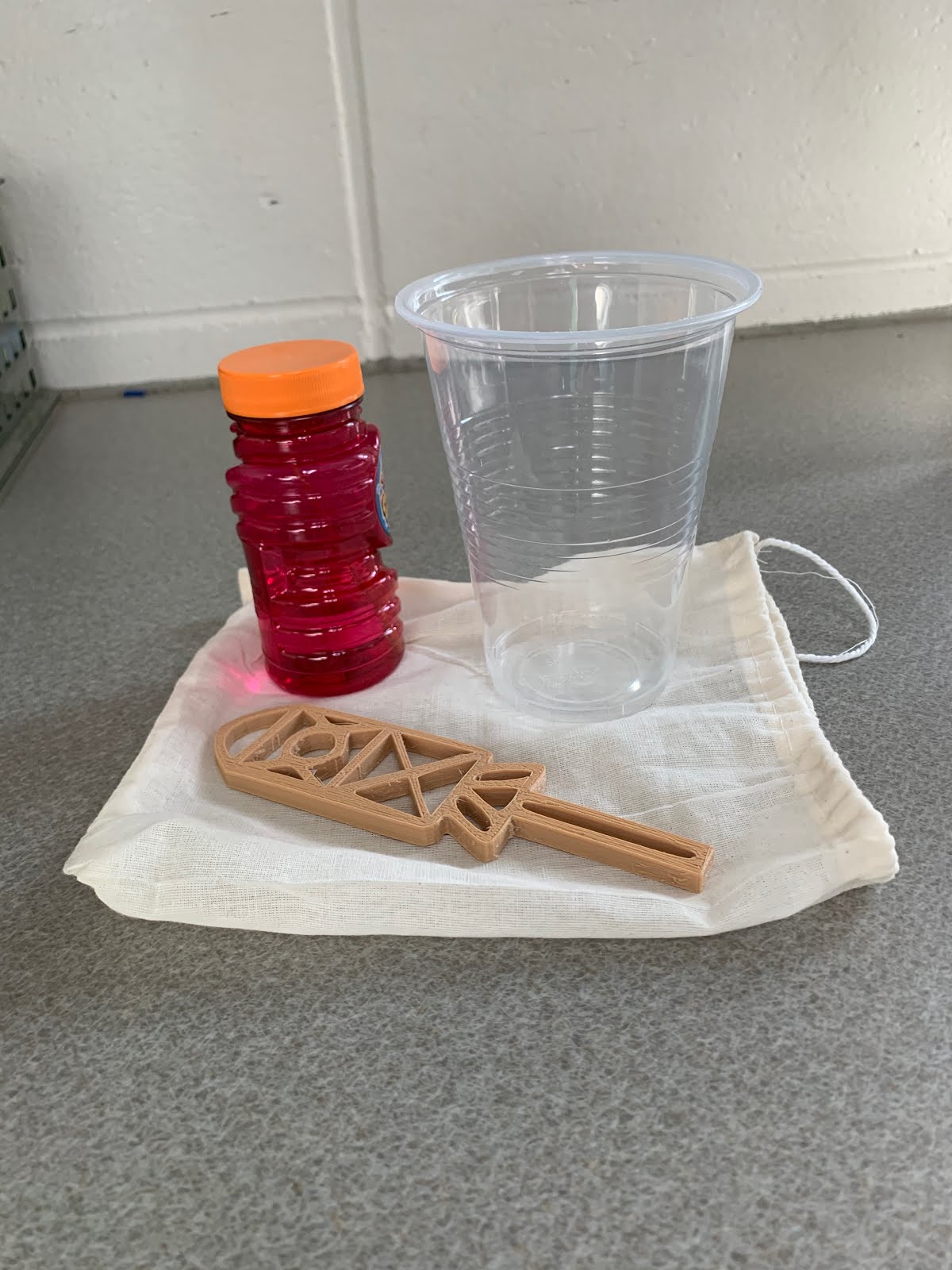
The teachers wanted students to “recognize and represent linear functions in real-world and mathematical situations.” To accomplish this, the seventh and eighth grade Algebra I students at both of our middle schools work with a partner to design bubble wands using linear equations which they print out on 3D printers and give to patients at a hospital or foundation of their choice. They put their wand in a small gift bag along with a bottle of bubble solution and a letter they write to cheer up the patient/recipient and explain what they learned in this process.

When I was in Cindy’s math class a few weeks ago I was able to see firsthand just how excited the students were with this project. She explained to me that the students in the 8th grade Algebra classes (4 of the 5 teachers) are grade level math students and, in the hour I visited, 1/3 of the students are also in her Algebra support class. “So the project is a great opportunity to add rigor and engagement for classes which might have defaulted to more rote learning in the past.”

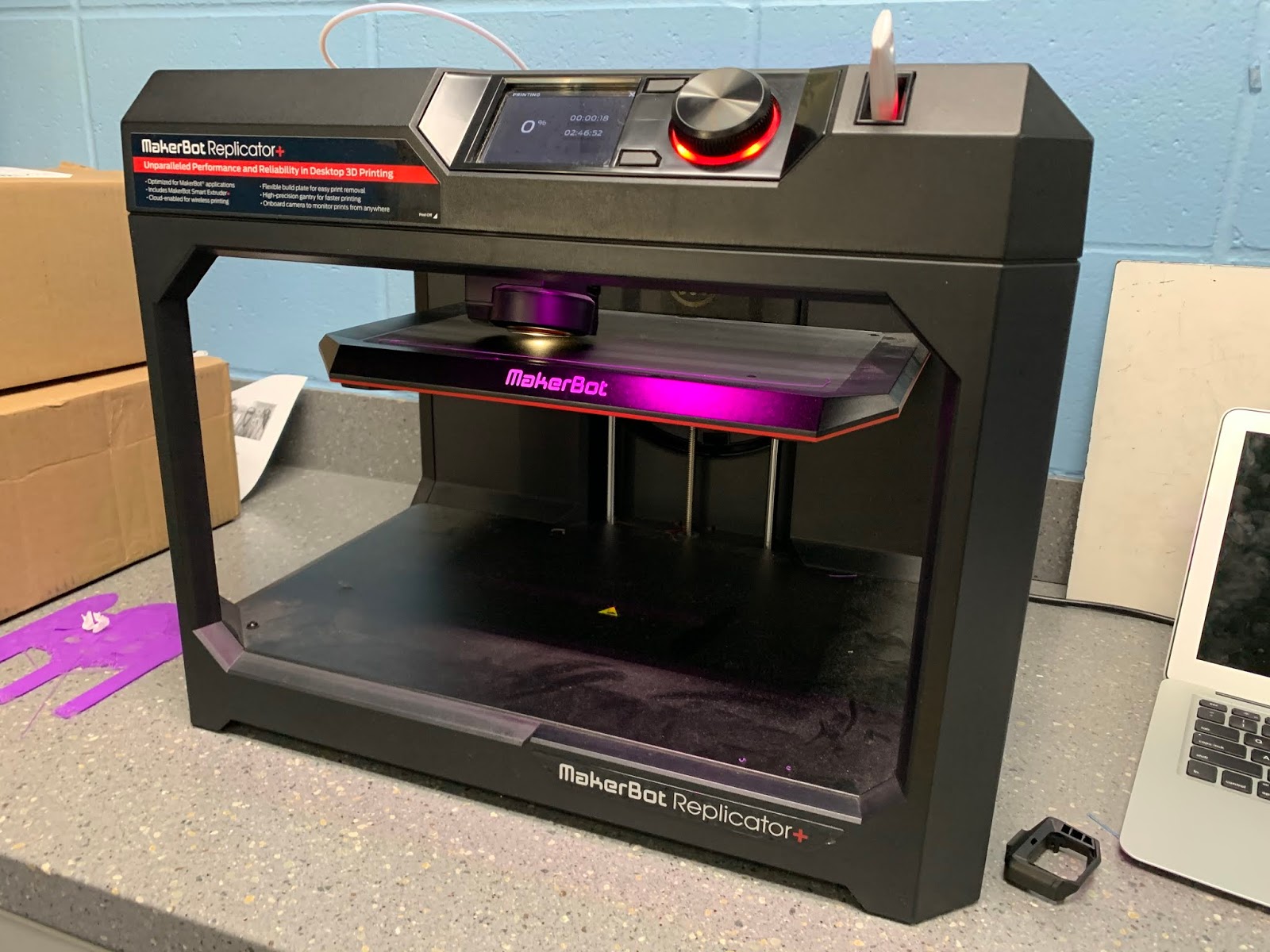
To design their bubble wands, the students first figure out linear equations to create the lines and curves needed to make the shapes in their bubble wand design. They use the Desmos app to do this. Then they use Selva3D to transform their 2D image to 3D. Afterwards, they import this design to Tinkercad to finalize it for the MakerBot printer. Their full instructions can be found here.

Below are a few student comments that came from an open ended survey question asking, “What else you might want to share from your experience?"
I really enjoyed the creativeness [sic] of this project, and the idea that we could be doing something for other people. It was a great break from normal solve equations, check work, solve equations, check work, while still being educational, and helpful.
I had lots of fun working on this, and going through all the challenges me and my partner faced.
It was sooooooo much fun and it really helped me with my lines. You guys should do it every year. It was cool to do something different that still helps you learn lines in a better/unique way.
I think this was a great project, not only to expand our understanding of lines and graphs, but also because we were doing this for a good cause.
This work is done as part of our School Board’s Goal #2: To continue to work to expand experiential learning and inquiry-based learning opportunities for E-12, including infrastructure and resources required. To help with this, last spring “Framework Grants” were awarded in which Minnetonka teachers could apply for funding to support such projects. (Learn more about the Minnetonka Framework for Teaching and Learning.) 

According to a report to the Board on January 20, “these grants encouraged those with ideas and initiative to create compelling student experiences with District support. Grants provided teachers paid planning time, a process to request funds for supplemental materials, training, and the support of a coach. 27 teacher teams chose to attend training and engage fully in the process. To date, 15 projects have been planned and have either been implemented with students or are waiting for the proper time in the curriculum sequence to do so. Remaining grants are in varying stages of planning and implementation.” 

Another example of a Framework grant is  Grade 2 Chinese Immersion students learning the cultural background of Chinese shadow puppetry--they learn and apply Chinese language arts skills by writing original scripts and performing shadow puppet plays for an audience. Students create their own shadow puppets and props in the Chinese tradition. 

Related Posts: